Help CenterBookings & Guests
Creating Bookings & Viewing Slots
Set your availability so prospective tenants can book themselves in.
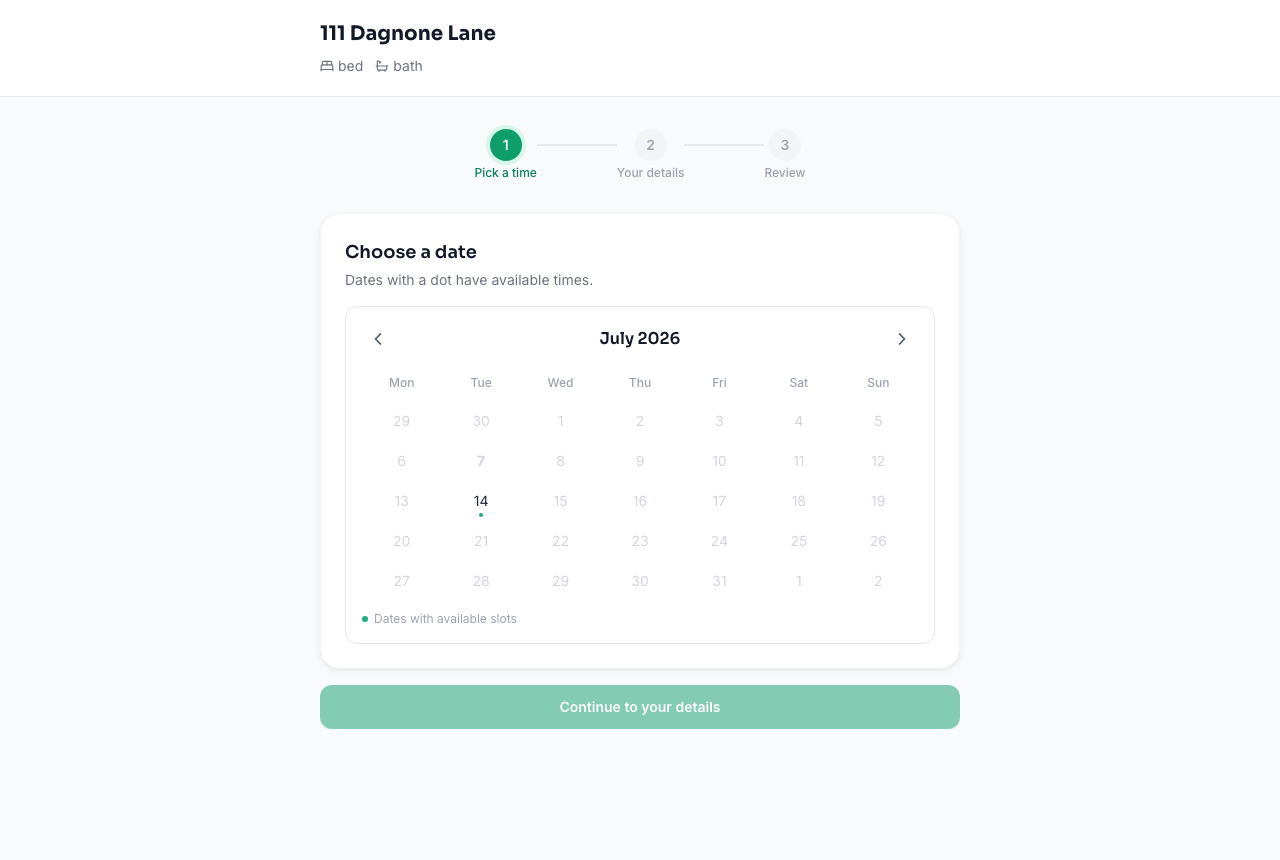
Bookings in Rentquill are viewing appointments — a prospective tenant picks an open time slot on your public booking page and books it themselves.
1. Add time slots
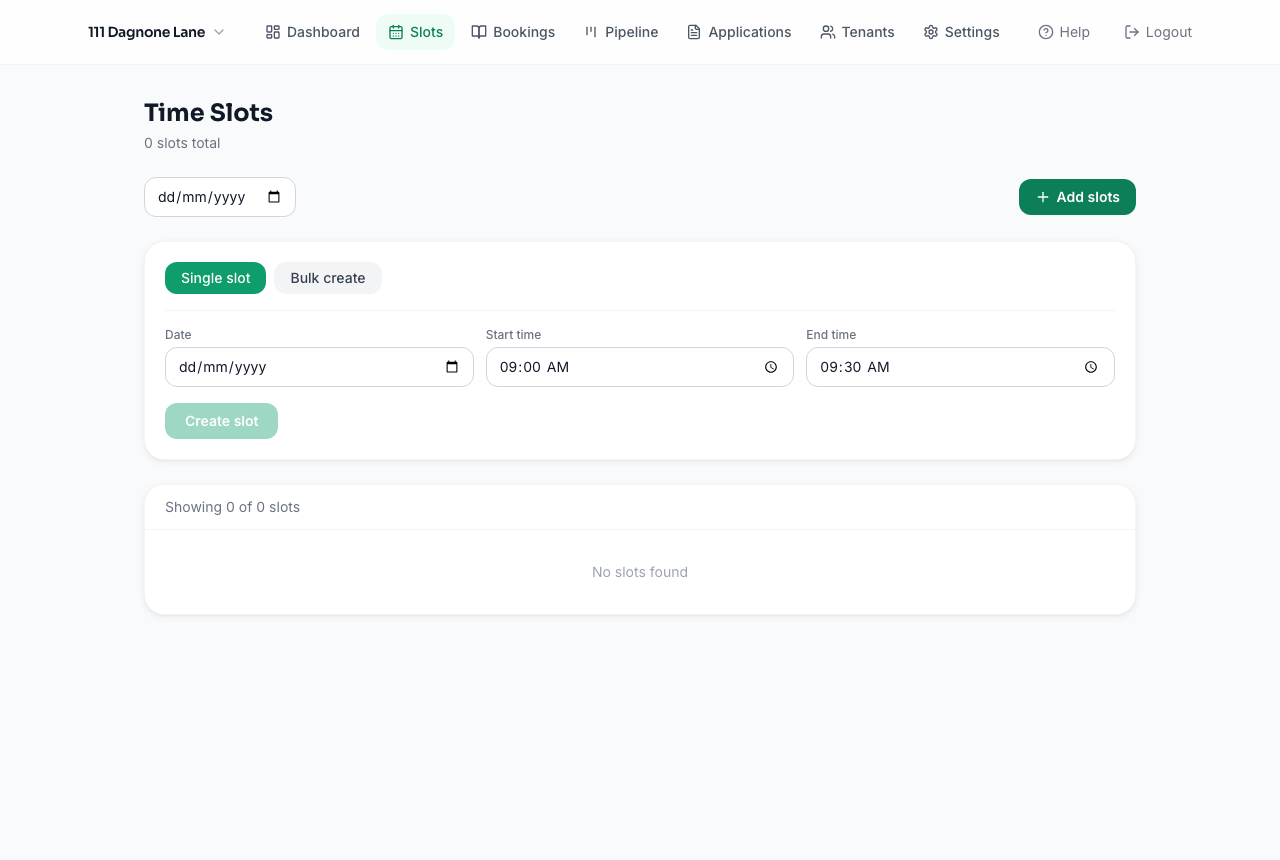
Go to Slots. You can:
- Add individual slots for specific dates and times
- Generate a recurring weekly schedule (e.g. every Tuesday/Thursday evening) in one step
2. Share your booking link
Your booking link (shown on the dashboard and in Slots) looks like `yoursite.com/book/your-property-slug`. Share it anywhere — social media, a listing site, a text message — and prospective tenants can book an open slot without you lifting a finger.
3. Manage bookings as they come in
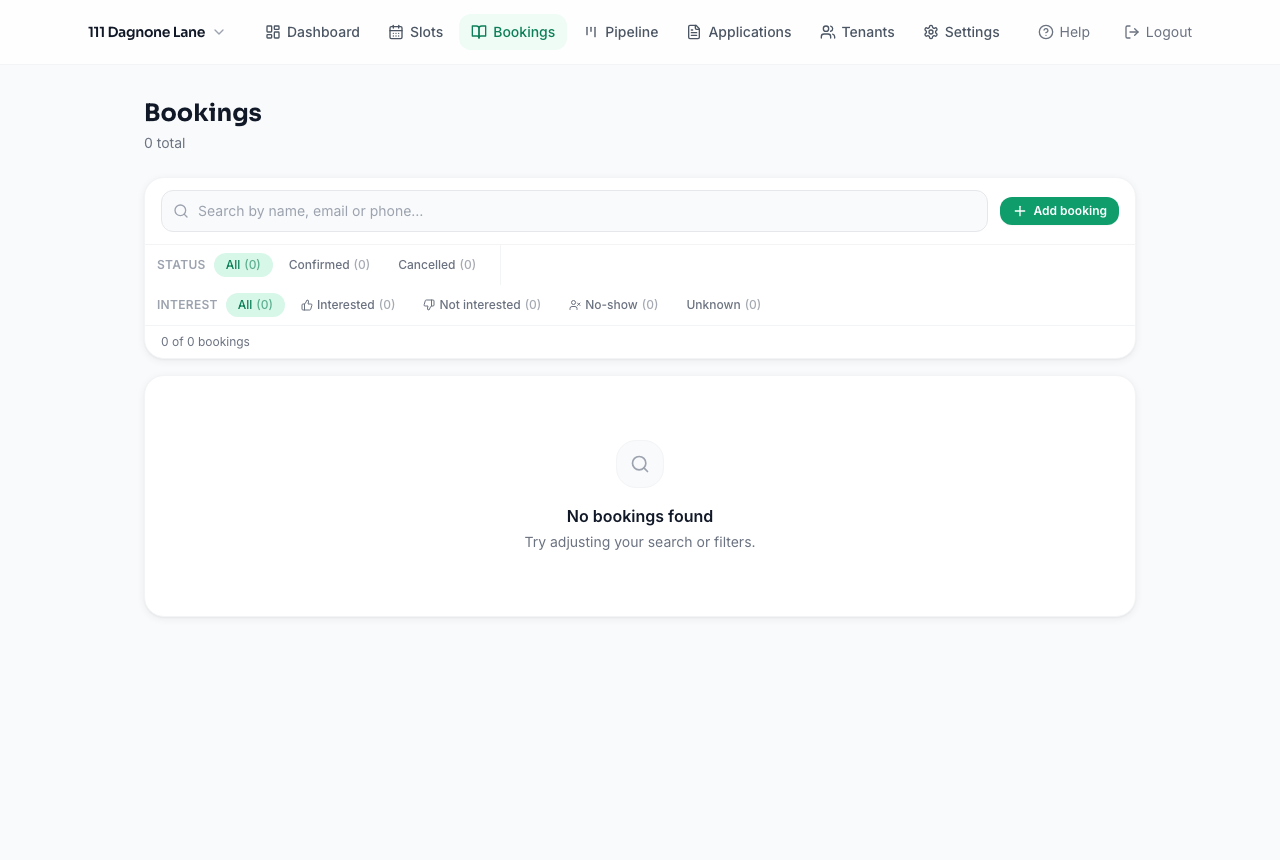
Every booking shows up under Bookings with the guest's name, contact info, and slot. From there you can:
- Cancel a booking if needed
- Mark a guest as Interested, Not interested, or No-show after the viewing
- Jump to their rental application if they've applied
Blocking time off
In Slots, mark a slot as blocked to keep it from being booked without deleting it — handy for holidays or maintenance windows.